

Plugin
We have created a plugin to work alongside BuiltSearch IV, offering a complete end-to-end workflow for IFC validation.
Revit Plugin
To start, install the plugin here. The plugin allows you to bring the results of IV directly into your Revit environment, enabling you to view and resolve issues within your model.
Installing
After downloading the plugin, close Revit and run the installer. A warning may appear because it is not digitally signed. We did not sign the app due to added complexity of a digital certificate, but the warning can be safely ignored as the app is secure, you can read more here.
The plugin will be installed in the Revit ribbon under the BuiltSearch IV tab.

Plugin Interface
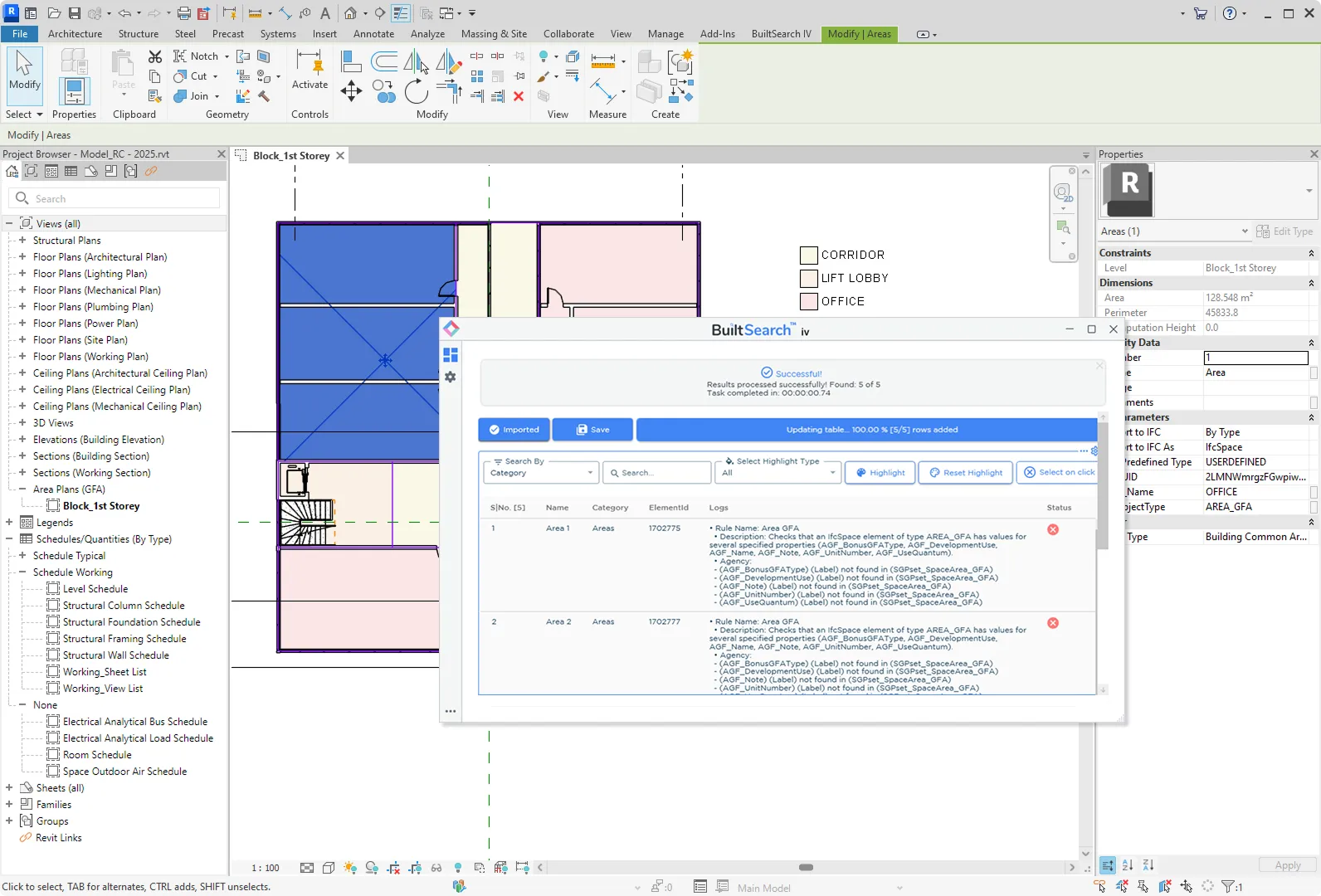
Click on Validator in the ribbon panel to open the plugin.

Below are the key features of the plugin:
Import Results: The first step is to import the results from theBuiltSearch IVplatform. After validating your IFC Model, click onExport Revit Integration Resultbutton to download the results file. Import this file into the plugin to view the results in Revit.Save: Save the result file to your local machine. It will override the existing file. This is useful if as you can load back the same file at a later time, and your progress will be saved.Highlight: There are 3 options available,AllResolvedandUnresolved. This will highlight the elements in Revit based on the selected option. The color of the highlight can be customized in the settings.Select on click: When enabled, clicking on the row in the table will select the element in Revit.
Other options to note:
Always on top: Keep the plugin always on top of windows. This setting can be found at the most bottom left of the interface.Settings: Settings page can be found at left sidebar gear icon.
Using the Plugin
Upon importing the results file, you will see the results in a table format below. The issues can be founds in the Logs column. Upon resolving the issue in Revit, click on the X button to change the status to Resolved.

ArchiCAD Plugin
We are currently working on a plugin for ArchiCAD. Stay tuned for updates!